
What are
/r/Lightroom's
favorite Products & Services?
From 3.5 billion comments
The most popular Products mentioned in /r/Lightroom:


![Adobe Photoshop Lightroom 6 - PC [Download]](https://m.media-amazon.com/images/I/51IBwdZ4aQL._SL500_.jpg)





The most popular Services mentioned in /r/Lightroom:
Sellfy
VSCO
Resilio Sync
Creative Market
Arq
darktable
DisplayCAL (formerly known as dispcalGUI)
OS X Daily
AlternativeTo
Google Drive for Desktop
Affinity Photo
Later
FreeFileSync
GIMP
HandBrake
The most popular Android Apps mentioned in /r/Lightroom:

FolderSync

My GPS Photo Map

Joey for Reddit
The most popular reviews in /r/Lightroom:
In addition to everything bavarian_creme said, it looks to me like they've also "crushed" the blacks a bit, as well.
(I won't talk about exporting to specific sites like Instagram as that has already been mentioned, basically just verify you're inside their required dimensions and file size.)
I use JPEGOptimizer for all my JPEG exports, as it takes away the guessing of selecting the correct compression %. Instead, you select a quality level (low to very high) and it detects the correct level (using jpeg-archive.
What /u/joonbar said. I'd suggest getting something like this (amazon link to the first example I could find) in the future. Check out this youtube video to see the before and after. You can try bumping the reds or doing color correcting but I'm not sure how much you can get out of it.
Darktable is an open-source lightroom alternative, I've used it for a few things but unfortunately, it doesn't support my Z50 yet so I have to wait.
Adobe have ditched the stand alone licensing a year ago leaving subscription as the only option. So you can either keep on using LR 6 as it is, or switch to subscription-based LR Classic CC. Sadly, there will be no more updates for stand alone version, LR 6.14 is the last one.
Dehaze tool have actually made it into LR 6, it's just there is no slider for it. But you can still use it by applying presets that have dehaze setting in them.
There is a pack of presets with different dehaze values specifically for that case. You can get them here: https://gumroad.com/l/dehaze
Use Handbrake to transcode it to a different format. I assume Adobe has some documentation on the supported formats.
I have to ask, why are you putting video in Lightroom? I've never done it, but I've wondered why other people do?
For sure I won't remember to check every month, so I made a Pushbullet channel to receive a push notification as soon they post something new.
Here's the link! https://www.pushbullet.com/channel?tag=freelightroompresets
There are several ways to run a virtual machine on OSX. I use VirtualBox, because it was recommended for the Windows software I had to run.
Virtualbox is free, which is nice.
It runs in a window in OSX, you don't have to restart the machine to launch it. ie, you can jump back and forth from your Mac environment to your windows environment anytime.
You can share a folder with the virtual machine. I haven't tested it with Lightroom.
Have you tried uninstalling using Revo Uninstaller? It goes behind and deletes all the remaining files after your uninstall completes. You might also try CCleaner to clean up your registry. Try those and see if you can't get things working.
Acdsee's Photo Studio Ultimate is the only thing I've com across that attempts to combine Lightroom and Photoshop in a standalone program. $150 and you're done.
Caveat: I haven't spent any time with it personally, but it has a free trial and claims to do everything I would need.
This gives you at least one way to proceed:
- Convert the KML file to GPX using something like GPSBabel (multi-platform, free).
- Use Jeffery's Lightroom Geoencoding Plugin (donationware).
There are no doubt other ways, which others may be able to suggest.
You can extend the possibilities of LR7.3 using the Enhanced profiles (somethimes with incorporated huesat maps (csv) and/or look up tables (cube), not only for RAW images, but for the Jpegs and Tiff too.
For example, you can use directly in LR some Blend modes (adjust overexposed and underexposed images) , preview Channels, make Channel swaps for Infrared shots, simulate Old photographic processes like Daguerreopype, make 1 shot HDR for Fireworks, Interiors, and Underwater photography.
check here (pages 1 and page 2) some profiles (LR7.3, ACR10.3 and later, April 2018 release)
https://creativemarket.com/Raztrend
Also check the Creative / Enhanced profiles from Matt Kloskowsky, Jared Platt, Really Nice Images etc.
As /u/mooglinux said, you probably want a better DAM solution than Lightroom, but you can do what you're proposing with LR.
Keeping the source images on the network is no problem, but LR doesn't want catalog files on a network drive. However, if you use something like Dropbox or Google Drive to share the catalog file you (and the other users) can all use the same catalog locally and have updates synced to the other users automatically. The only downside I can think of would be trying to use the catalog between multiple users simultaneously.
EDIT: I did a bit of poking around and found Daminion which might suit your needs. Lots of filtering features, tagging, everything you'd expect from a DAM. You can share XMP sidecar files between both Lightroom and Daminion if you prefer to use LR for ingestion and Daminion for organization/searching. It is Windows only however.
You can use Lightroom and other Adobe products for a month (IIRC) on a trial basis.
Or, just download Darktable (needs Linux, but it's quite similar to Lightroom) or GIMP (cross platform, but is similar to photoshop, not LR). Either program is 100% capable of editing your photos however you'd like, LR just tends to have a nicer workflow.
Also, if you're going to ask people to edit your stuff, just post a link to the files, don't make people ask for it.
You can quite easily install NTFS read/write drivers on your Mac: http://www.macbreaker.com/2014/06/how-to-enable-writing-to-ntfs-hard.html
I'm using it without issues. Just gotta be careful to always properly eject the drive before disconnecting.
No, the encoder is based on mozjpeg with jpeg-archive implementing several different evaluation methods (rather than only butteraugli).
There is some discussion here comparing them, apparantly Guetzli is only optimized for their own scoring method that doesn't necessarily reflect how humans score the image quality.
But most importantly Guetzli is super slow while mozjpeg gives you similar (or even better) quality with good performance which fits much better into a Lightroom workflow.
For those that need/want a Spyder5Pro for calibration, Amazon Prime Day has them on sale for $99 (normally $179)
https://www.amazon.com/Datacolor-Spyder5PRO-Designed-Photographers-Designers/dp/B00UBSL31Q/
Oh, good catch yes I highly suggest investing in a portable hard drive or two. You can get a terrabyte or more fairly cheap on Amazon https://www.amazon.com/Black-Passport-Portable-External-Drive/dp/B01LQQHI8I/ref=mp_s_a_1_5?ie=UTF8&qid=1532447876&sr=8-5&pi=AC_SX236_SY340_FMwebp_QL65&keywords=portable+hard+drive&dpPl=1&dpID=41u14pVvuiL&ref=plSrch Brand is a personal choice, this is just an example. Your photographs are unique and moments you probably can't get back, redundancy is key.
I think a lot of the online services removed this kind of thing for privacy reasons. I feel like you used to be able to see a map of all your photos on Flickr, for example.
If you have a Mac, it looks like you can use Apple's Photos app:
http://osxdaily.com/2018/02/04/show-geotagged-photos-map-mac/
https://www.cultofmac.com/440916/how-to-get-macos-sierra-to-display-your-photos-on-a-world-map/
Any modern OS manages swap and DRAM without user intervention. Disabling swap is not recommended, and it does NOT have a negative effect on performance as long as you have enough DRAM.
See http://superuser.com/questions/810170/should-i-disable-swap-file-if-i-have-lots-of-ram-or-should-i-move-it-to-a-virtua for more information.
Why do you think my SSD can't handle being used as a swap device as well as a boot drive? The SSD is not the bottleneck - we established this already. And besides, when LR is exporting, the system is not doing much else.
There are RAID arrays that can hold thousands of disks and 10's of GB of write speed.
I agree that 3-4 disks per SSD (for throughput) is about right. There are many 4-8 disk desktop RAID arrays available.
USB-C connection is nice however, if you are good with DisplayPort 1. 2 / HDMI 2. 0 connections, the AOC U2790VQ is $209 right now on Amazon.
Works well @ 4k (>150 ppi) with my Studio, 2020 10th gen i5 MBP 13" and (work) Dell Latitude as well.
Amazon sell them. This is the link in the UK store -https://www.amazon.co.uk/Adobe-Lightroom-Device-Year-Download/dp/B07Z52BX1S/ - but they are available through most country stores I think.
The price can range from near full price right down to a quarter of the Adobe price - when that happened last I bought three of them and stacked up the codes so my sub now runs through to 2025.
I'm in the same pinch. I really only use Lightroom to organize my film scans. I'm not a daily or heavy user. So I don't want to get roped in to a year subscription to use for just a few days. I just want to look at my photos organized. But I've painstakingly added metadata notes by hand. I'm going to buy it a month at a time on Amazon, as needed. Then I'd like to export my entire film catalog to another software program, but I need the notes to go with it. https://www.amazon.com/Adobe-Photography-Photoshop-Subscription-auto-renewal/dp/B07QZB1PMQ/ref=sr\_1\_5?crid=1RPF5HRAMBVDQ&keywords=lightroom&qid=1657582046&sprefix=lightroom+%2Caps%2C144&sr=8-5
This doesn’t help your current situation, but next time look for the Amazon 1 month subscription instead
For example this is the photography plan monthly sub that doesn’t have a year long commitment or cancelation fees. As far as I know, Adobe doesn’t offer this directly on their site.
Adobe Creative Cloud Photography plan 20 GB (Photoshop + Lightroom) | 1-month Subscription with auto-renewal, PC/Mac https://www.amazon.com/dp/B07QZB1PMQ/ref=cm_sw_r_cp_api_i_WFNVAA5DW1WMMRRH44TF
I use a Sabrent Thunderbolt enclosure (https://www.amazon.com/Thunderbolt-Certified-Tool-Free-Enclosure-EC-T3NS/dp/B08FT59SB6/) with a Samsung EVO 970 Pro. It's just amazing.
The only downside it can get quite hot even without using it. So I just pull it out when not using it.
http://osxdaily.com/2015/08/06/make-symbolic-links-command-line-mac-os-x/
Do what I would do on a Windows box. Try making a hard or symbolic link of a folder that actually resides on an external drive.
Is normal with all RAW files iv looked at, at least it is normal on my cannon and Fuji RAW files.
I think Sony works with capture one https://www.captureone.com/en/capture-one-express/sony
So they may start closer to the original Sony look.
Firstly, keep in mind when you're watching all these youtube tutorials from photographers that are pimping a preset pack, they are basically gunning for some money and while the tutorial they present is still useful, they are going to be making it sound like all you need to do to get the same results as them is to buy their preset pack, and it is almost never that simple. If you expect to buy some random preset pack off a youtuber and have it change your workflow for the better in every case, you will be let down.
Presets are, however, a great starting point (as u/issafly mentions) but invariably you will need to continue working with the image. Presets are great for learning what does what, though, especially if you make a virtual copy of an image, apply the preset to one, and turn on/off some of the adjustments and compare against the original.
The only preset pack I've ever bought is the set from Really Nice Images, because I was hunting for that vintage film look. Some people go with VSCO. Those two seem to be the most popular and well used ones out there.
what is your insta? I'll see if it looks blurry here:
me > https://www.instagram.com/chrissoltis/
edit: my export process is: long edge 1400 resolution 240
no export sharpening (that might be it)
I have some screenshots i hope can show what the problem is. I brought the sliders to the extreme in both screenshots and no change to the image.
screen recording http://tinypic.com/r/2hpk4nl/8
If you are running windows you could utilze dynamic disks. Basically kind of like software raid in windows that allows you to extend volumes with physical disks. Caveats apply though. https://www.google.com/url?sa=t&source=web&rct=j&url=http://superuser.com/questions/45779/dynamic-vs-basic-disk-hard-drives&ved=0CC0QFjADahUKEwiMzquQsfHHAhWRGY4KHYJoCh8&usg=AFQjCNHH9BZBOcWpBe1dRYq1JVlvYl7QTg&sig2=LVoazw0Ud9...
No, it's a completely different toolset. You can find something here, a list of basic video editors: https://alternativeto.net/software/imovie/
Image organization software can only store videos, not edit, so you should look elsewhere.
I like lightroom, I see no reason to change. It does everything I need.
Looking at alternatives, Affinity sounds like it is more like photoshop not lightroom.
I have heard Darktable is a good free alternative.
Just finished researching and purchasing a laptop for that very reason. It's out of your budget, but the MSI is fabulous. This is the computer the Photoshop guru on YouTube recommends. (Photoshop Training Channel)
https://www.amazon.com/gp/product/B096D4KY27/ref=ppx_yo_dt_b_asin_image_o01_s00?ie=UTF8&psc=1
They may have one closer to your price range with an i7, less memory, and smaller drive, in your range.
- change your drive to an SSD
- get faster memory
- Get a better CPU
- http://www.makeuseof.com/tag/guide-speeding-windows-7-machine/
- http://www.howtogeek.com/107280/the-best-tips-for-speeding-up-your-windows-pc/
First of all, do you use LrC or Lr? Do the photos that you want to send are already tagged with keywords and/or are organized in Collections/Albums - and do you want to store the remotely edited photos together with the raw originals when you get them back?
In case you and the remote editor both use LrC you should export the photos as a Catalog, send it encrypted with Tresorit Send (5GB limit) or swisstransfer (50GB limit) Don’t rename or move the photos after that. The remote editor should send the photos to Photoshop from within the Collections so that the tiffs return there. When he/she sends you the catalog back (with just the tiffs inside-the raws can be deleted) you can import (as a catalog - not just the photos) this catalog back and the tiffs will get back to your same original collections.
In case you both use Lr and the full res originals are on the Cloud, the remote editor can share to you an empty album and give you the right to contribute. It needs to be enabled!on each account as it is a preview feature. You can add the photos to this album and they will be copied to his/hers Lr cloud account, automatically. Do the reverse (share to the editor another album with the right to contribute) to get the edited tiffs back. Unfortunately with Lr you cannot transfer any album organization.
I'm a fan of the X-touch Mini for Lightroom: https://www.amazon.com/Behringer-XTOUCHMINI-BEHRINGER-USB-Controller/dp/B013JLZCLS
Knobs and buttons, man. :) LR doesn't seem like it would lend itself well to joystick type controls and you'll want more controls than the Tourbox has.
The X-touch has some really cool features when used with MIDI2LR: Lights around the knobs track the settings. The knobs are pushbuttons, too - you can program them so that if you push the knob, the setting goes to default. 8 knobs replace 8 sliders and there are 16 buttons for things like copy, paste, undo, redo, previous, next. Two banks - each of these controls are doubled through the A/B buttons, so you really have 16 knobs and 32 buttons.
I don't believe Photoshop has a way to interface to MIDI controllers.
> towards your 20GB (??) cloud quota.
There is a 20GB plan for $10/month or a 1TB subscription for $20/month
The recommended settings in the official documentation are usually a good start and what I've always used: https://handbrake.fr/docs/en/1.2.0/workflow/adjust-quality.html
You can start with a preset and then experiment until you find a balance between the speed of encoding/quality/size. x265 is very efficient but takes a lot of time because it's not GPU accelerated yet and very CPU intensive, but x264 should still be pretty good for you.
Yes, no and maybe. For keywords and ratings (as well as captions and other metadata you have added) make sure you are saving to XMP in Lightroom. But you haven't said which kind of files you're using, I'm assuming some kind of raw file here. Save to XMP automatically is a Preferences option or you can select images and 'save to file' from the Metadata menu.
The adjustment settings will also be saved to XMP but they're only readable by Adobe products. Unless you are saving your raw files as DNG format but I'm not sure about that if true at all.
Capture One can read basic adjustments from Lightroom but that's not a cheap alternative - you may as well pay Adobe!
On the other hand you'll fine a LrC subscription on offer right now, about 30% off so around £/€/$ 80
Oh, sorry, id you're not a Brit, that discount is UK only.
Recuva may save the day.
Note this software works well and is free; it was made by Piriform who also made ccleaner but they got bought out so that’s why the filehippo link, it’s to the last free version.
This can scan your drive and likely recover everything if you haven’t overwritten it.
Hi mate. Thank you for your contribution! I do not have anything that I can request but I am about to purchase Peter McKinons Fall pack - are any of yours similar to these?
Peter McKinnon has made two really great preset packs for Lightroom. He even made videos along with them to showcase what they look like and how to use them.
PM Lightroom Preset Pack 2017 PM Lightroom Preset Pack FALL 2018
They’re absolutely worth the money!
I like https://sellfy.com/p/gTfm/ for portraits, makes skin look good. otherwise you can't go wrong with vsco presets! and you can always create your own to your own taste to avoid disappointment :)
>My simple fix is to calibrate my display to sRGB, I use https://displaycal.net/ with a colormunki display.
Hi, calibration is (mostly) using your monitor's settings to get it more in-line with expected color-managed viewing conditions.
Profiling is the step where you measure a monitor's color reproduction, create a profile for your monitor, and then install that profile in your OS so that color managed software can display accurate colors.
What you're suggesting is skipping both of these steps and installing a device-independent color space profile, sRGB, as if it were a device-specific monitor profile. This is really a bad idea.
It might work on a monitor with a mostly sRGB gamut anyway. But on a high-gamut monitor like OP's, it will result in everything being oversaturated (at least consistently oversaturated though! lol). That will result in OP undersaturating their images while editing, which will cause their images to look dull and lifeless on properly color-managed computers and software.
Ok your problem is your using windows with a wide gamut display & using apps that are not colour aware.
The problem you are seeing is windows is made to work in sRGB, vary few apps will display past sRGB or be aware of ICC profiles.
You need to read up on what apps will display colour correctly and which will not.
​
My simple fix is to calibrate my display to sRGB, I use https://displaycal.net/ with a colormunki display.
Going past sRGB in windows is a super pain.
A second option is to set your display to sRGB only.
​
There have been talk of a developer preview update of windows which is ICC aware but until it ships windows is just best in sRGB unless you have a real need and are willing to put the time in.
Or use a mac for simple colour management
PS I have the Dell S3221QS, nice display and calibrates well for the price. Dells tend to be good displays.
If you do buy a display calibrator get a new one (or a used one that's not old), the old ones tend to have software problems on new OS's or the filters can fail. amazon has them on sale 1 or 2 times a year so worth keeping an eye out for a sale.
https://displaycal.net/ is the open source software and the site has lots of info & comparisons of different hardware devices.
On windows you tend to want sRGB as the goal & if you want to share your photos online sRGB is what all websites use, web browsers tend to expect all images to be sRGB so non sRGB images get displayed wrong a lot of the time.
but past that calibration is not something to over stress on as 99% of devices are kind of default so most the time it's best to just have your display on a default setting or sRGB preset from the display then check the photos look good on other devises like your phone when sharing online.
It's good to keep an eye on the RGB histogram, if you read that you can tell how the image will look. When RGB line up it's neutral and when there not lined up there's a cast, so you can tell if the shadows/mid tones/highlights have a warm or cold cast etc.
The RGB histogram will also show you how much of the image is dark/mid tones/highlights etc. so even if your display brightness is off you can still get a good impression of what the image looks like.
It's handy to know as even if your display is not spot on the RGB histogram will give you a good impression.
​
Anyway in general it's not something you need to stress over unless your working or doing a lot of prints, id not mess with the display by hand and just use default or sRGB preset.
Ps on most displays Iv used about 20-brightness is about 120 lumens which is the old calibration target for print but now with most photos seen on displays and they tend to be fairly bright im not sure if it matters as much now. Depends on where you want the images seen I think.
To the best of my knowledge the catalog backups require your input by clicking and there is no way to set a max number.
There is a very cool little program called Hazel that I love. You can use it to set up all kinds of automation to keep files and folders tidy, and one of the rules I have set up is to delete any of my catalog backups after a month. It's worked flawlessly for years and you'll probably find a few other uses for it on your computer (like setting a max Trash size or keeping old files off your desktop.)
Photoshop does not include much metadata in it's exported jpegs, and in Light room I include all metadata. Even stripping all metadata from the Lightroom jpeg, using exiftool, only reduced a 17.8Mb file by 35Kb. The same file outputted from Photoshop is only 7.2Mb.
I am making a big assumption that 100% quality in Photoshop is equivalent to 100% quality in Lightroom but have not found any reference to make a direct comparison between the two but even when comparing pixel-by-pixel on screen I just can't see any difference between the 2 outputs. And it's the same behavior for any tiff file I pick so it's not content-specific.
Huge catalogs don't help. There's the option to "optimize catalog" but i've never seen that do anything.
If you want to know more specs on your system you can try CPU-Z
Lightroom has no server mode at all. The subscription service won't help you because it's only between one desktop and multiple mobile devices all signed in under your account only. And the face recognition and keywording are NOT available on any Lightroom Mobile client. Only on the master desktop Lightroom application.
You might have a look at the Mylio service. I'm not sure if it will meet all of your needs, but the sharing is more flexible, it integrates with Lightroom, and it can tag from any device.
I've looked at all the alternatives suggested so far, and find it surprising that OnOne hasn't been mentioend yet. I think it offers the most similar functionality.
https://www.on1.com/products/photo-raw/
I have no association with this company, other than owning a license to their program. I still prefer Lightroom better.
check out https://color.adobe.com/create for a color wheel that will you show you complementary colors. You are using the split toning panel in LR right? I would recommend using the color picker and selecting what already exists in your photos in the highlights and shadows that you would like to place emphasis on. It's tricky at first knowing how much or how little but it's very subjective and you have to trust what you like.
You need to install HEIC for Windows. This will allow you to open HEIC image files and iPhone videos. Both open and preview in Windows.
https://www.copytrans.net/copytransheic/
Crop to 4x5, then export custom at 1350px on long side.
or just read one of the hundreds of articles that list the details:
https://www.picmonkey.com/blog/size-matters-instagram-photo-sizes-made-easy
>I really can't believe I can't edit a photo on iOS and transfer those changes to a Mac/PC.
You can. There is Lightroom Mobile and Photoshop for iPad. Both are available through the App store. Snapseed and Lightroom are just not compatible. Same with Lightroom and C1.
You have to use Lightroom mobile start to edit, sync everything to your Adobe Cloud, go to your Mac/PC, open Lightroom (don't know if it works with Lightroom Classic too) and download all the files from the cloud.
Edit: Yes there are workarounds to transfer the metadata from your iPad to your Mac/Pc but that would involve 3rd party software. This wouldn't help you thought because Google itself said that metadata from Snapseed isn't compatible with any other software: https://support.google.com/snapseed/answer/6307084?hl=en
> I don’t need the ability for editing photos, just organising by date, face and location.
Don't pay for Lightroom, Adobe gives away their photo management without the editing in the 'Adobe Bridge' product. https://www.adobe.com/products/bridge.html
before doing anything, read the manual. If you're thinking of using CC, instead of Classic, you'll need to understand Cloud-based asset management first.
Personally, i would suggest using Bridge for your task. There's really no reason to use Lightroom if all you're doing is asset management.
If you are on a Mac, you might want to give Pixelmator a shot. Honestly though, I'd probably stick with PS Elements since it has 95% of what you might want for photography without all the bloat that has been added over the years to cater to graphic designers, 3D artists, etc.
If you are still in university you can also check out Adobe's academic pricing, which is quite reasonable and will allow you to upgrade to future versions later on.
What. Operating. System. Do. You. Use?
For Mac, Windows, and iPad, check out Affinity Photo. It's not free, but it's reasonably priced and not a subscription.
Lightroom is not much good for video. Lightworks is a very capable video editor even in the free version. Another tip is to watch out for video file creation date metadata. It's usually wrong on import to Lightroom. Cameras don't handle video file data well.
I've used content-aware fill in less detailed areas. Or you can use a masking layer+levels and try to match the color of the non-flared sky.
My wife and I share one Adobe account between 3-4 computers. But we're only signed into what ever the limit is at once. And we only ever use Lightroom one at a time.
We share the catalog and the library via Resilio Sync, to bypass the restriction on the catalog needing to be local. But we're careful to only have one person doing anything at a time.
While I'm not using Lightroom Classic, I am on Lightroom 6 and I sync with Resilio Sync.
https://www.resilio.com/individuals/
I have a root folder setup on both my Mac (laptop) and PC (desktop) that contains both the catalog and pictures folder and that root folder is what Resilio Sync picks up and synchronizes between the computers. It works great.
Note: I don't know how it would handle simultaneous changes to the catalog and whether that would stomp on one or the other. I make changes on one machine, then make sure the sync is finished on the other before doing anything else.
I use Resilio Sync to get around Lightroom's insistance that the catalog can't live on a network drive. I have a "server" and two computers, each computer is pointed locally at a folder that is shared among all three for the catalog and pointed at the same share on the server for the data. So when the catalog is updated locally on a computer, Resilio Sync takes care of sending that locally written data to the other computer and the server. When the actual files are updated, they go right to the server via a mapped network drive and the same Resilio Sync share handles getting the data back to the two computers. I write to the server because the share resides on a very redundant zfs filesystem while the local data on each computer is just a single hard drive.
This is how I've done it. Sync via a program like FreeFileSync and then just update the folder location inside lightroom. This route allows me to pause the syncing process without having to wait, and gives me a readout of any errors or problems. It gives just a bit more flexibility and peace of mind that everything is copied over.
I just set up both my computers (a Windows desktop and a MacBook Pro) using Syncthing (didn't want to pay for extra Dropbox space).
I now have it sync 1.) the folder that includes my LR catalog and the smart previews between both computers (I have this folder on the MacBook's internal SSD) and 2.) the folder with all my RAW-files (that's on an external HDD attached to the MacBook and on an internal SSD on the Windows PC as it's big enough and much faster).
All I have to do when I switch computers (and I want to export sth.) is to tell LR where the folder with the RAWs is located. As I let LR create Smart Previews during every import I can even edit photos without the external HDD on my MacBook.
Very happy so far.
The LRCAT file is a database using a database called SQLite. You can open this database using a F/OSS tool like DB Browser for Sqlite. Open the main database file "Lightroom Catalog.lrcat" and look down the names in the Database Structure tab for Adobe_images. Click on that and go to the "Browse Data" tab. Look at the bottom and that will tell you how many images are known to LR. If that number is consistent, then it was just DB compression, as in the cleaning of deleted entries which happens periodically.
There are other tables as well to check, but that is a good start. Remember to exit out cleanly.
Try using the free Facebook Creator Studio instead. It allows you to post/schedule to Instagram for free and it's an official Facebook tool. It's a bit more basic than Later.com but that doesn't weigh up to the fact that it saves you a bunch of money!
You can get a cheap grey card and make sure that's in a photo or two per situation?
First let's clarify: are you using Lightroom Classic or the new cloud-based Lightroom?
Second: I know very little about the OneDrive cloud storage service. But putting your raw files in a cloud service is a very bad idea IMHO, especially if that cloud service is managing, independently from LR, which files are actually on your computer and which files are "removed" (with pointers remaining) to save local physical space.
Third: you say OneDrive is nearly full. Do you actually mean you're running out of cloud storage? Or do you mean your physical hard drive in your computer is nearly full? (Or maybe both?)
You may need to buy a bigger hard drive or an external drive, like the following, and completely forget about OneDrive.
Tbh, I've never heard of this - it's not working here on the latest stuff.
If you hate moving sliders with a mouse, the best option may be something like this with the MIDI2LR plugin. Each slider gets a knob and it works quite well.
Would this be a decent option? Acer Aspire 5 Slim Laptop, 15.6 inches Full HD Screen, AMD Ryzen 3 3350U Processor, 20GB RAM, 256GB SSD+1TB HDD, Wi-Fi 6, Backlit Keyboard, Fingerprint Reader, Windows 10 Home, Silver, KKE Mousepad https://www.amazon.com/dp/B08HSFB4FF/ref=cm_sw_r_cp_api_glt_fabc_JNS4JYAVFJSVRBYEA3JB?psc=1
I used an adapter, not a hub, this is the exact one: https://smile.amazon.com/gp/product/B07CVX3516/ref=ppx_yo_dt_b_search_asin_title
I just get single months of Lightroom as I need them. I usually end up just doing it once or twice a year tbh.
This is the 1 month sub I get:
Adobe Creative Cloud Photography plan 20 GB (Photoshop + Lightroom) | 1-month Subscription with auto-renewal, PC/Mac https://www.amazon.com/dp/B07QZB1PMQ/ref=cm_sw_r_cp_api_glt_fabc_C99QWM8FZ4HHEQ24ZBGD?_encoding=UTF8&psc=1
It is! (On Amazon anyway)
Adobe Creative Cloud Photography plan 20 GB (Photoshop + Lightroom) | 1-month Subscription with auto-renewal, PC/Mac https://www.amazon.com/dp/B07QZB1PMQ/ref=cm_sw_r_cp_api_glt_fabc_C99QWM8FZ4HHEQ24ZBGD?_encoding=UTF8&psc=1
I am pretty certain this is no longer true as of last year or so! There were other posts in this sub confirming as much too (including one of mine)
I’ve purchased single months of lightroom subscriptions from Amazon. This is the listing:
Adobe Creative Cloud Photography plan 20 GB (Photoshop + Lightroom) | 1-month Subscription with auto-renewal, PC/Mac https://www.amazon.com/dp/B07QZB1PMQ/ref=cm_sw_r_cp_api_glt_fabc_C99QWM8FZ4HHEQ24ZBGD?_encoding=UTF8&psc=1
Recently used this… Adobe Photoshop Lightroom Classic Classroom in a Book (2020 release) https://www.amazon.co.uk/dp/0136623794/ref=cm_sw_r_cp_api_glt_fabc_G0DCD3R3147CAGW5EZEY?_encoding=UTF8&psc=1
I'm editing on an SSD and then using Seagate 8TB drives like this for archiving/storage:
https://www.amazon.com/Seagate-Expansion-Desktop-External-STEB8000100/dp/B01HAPGEIE?th=1
I have some Western Digital 8TB that work well, too, but I prefer Seagate when available.
US Amazon definitely has a monthly no annual commitment Photography plan (the $10/mo one). I paid for 3 months from September to November and canceled without any cancellation fee.
Here’s the link: Adobe Creative Cloud Photography Plan 20 GB (Photoshop + Lightroom) | 1-Month Subscription with Auto-Renewal, PC/Mac https://www.amazon.com/dp/B07QZB1PMQ/ref=cm_sw_r_cp_api_glc_fabc_4fl8FbHDVMSFZ?_encoding=UTF8&psc=1
I got an iPad Pro a few weeks ago with the Apple Pencil and love it. There’s a cheaper pencil alternative on amazon for $35 and it has great reviews, I highly considered that one. The only downside is it does not have pressure sensitivity but it should serve it’s purpose in lightroom. Here’s the link
I have this currently
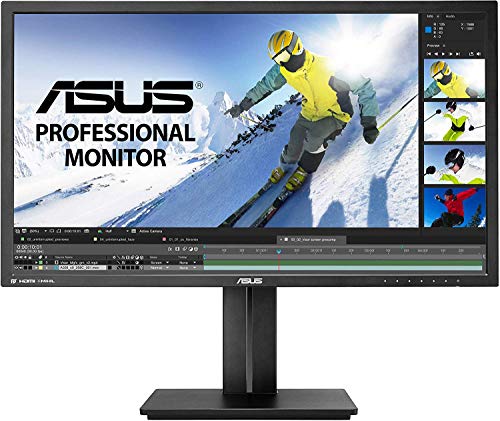
ASUS PB287Q 28" 4K/ UHD 3840x2160 1ms DisplayPort HDMI Ergonomic Back-lit LED Monitor,Black https://www.amazon.com/dp/B00KJGY3TO/ref=cm_sw_r_cp_api_fabt1_qgGRFb5EQ7W6P?_encoding=UTF8&psc=1 It’s probably what I would edit on, and then have the 144 for gaming.
| Joey for Reddit | 1.8.9.1 (332) |
|---|---|
| Android | 10 (29) |
| Phone | google/Pixel 3a/sargo/sargo |
| RAM | 3.51 GB |
This would work perfectly: Corsair Flash Voyager GTX 256GB USB 3.1 Premium Flash Drive https://www.amazon.com/dp/B079NWJTGG/ref=cm_sw_r_cp_api_i_ZQEfFbE2BHQ6Z
It is a USB 3.1 thumb drive but the internals are an SSD with a controller. It acts just like an external SSD drive, because that’s what it is.
More info here: https://www.corsair.com/us/en/Categories/Products/Storage/USB-Drives/flash-voyager-gtx-3-1-config/p/CMFVYGTX3C-1TB
It looks like it's "exFAT" file system, showing as "USB Drive" in properties and connected via a USB 3.0 cable.
This is the drive I'm using right now: https://www.amazon.com/gp/product/B00KYK1IES/ref=ppx_yo_dt_b_search_asin_title?ie=UTF8&psc=1
The drive is nearly empty (I just wiped everything so I can use it as a lightroom drive) so I'm not too worried if I need to re-format or anything, if thats what it takes?
I wouldn't trust only depending on the Adobe cloud option at all. Besides depending on having internet regularly plus needing the upload speed to keep up with what you're shooting, you're also limited to the 1TB plan unless you want to pay for extra. Even if you only average shooting about 8GB a day, you're looking at about 1.5TB of files created.
If it were me I would consider everything shot on this trip as irreplaceable and spend a little more on ensuring I don't lose anything. SD cards and SSDs currently are stupid cheap. On a big trip I would be buying enough SD cards to not have to delete at all until I get home plus enough SSD space to copy onto without deleting anything and not depending on one point of failure.
- Get enough SD cards to not have to reuse for 2 weeks of shooting.
- External drives enough to cover the entire trip, preferably SSD (Not all one big drive)
- Cloud service independent of Adobe. I use Backblaze for $5/month, but you need to have the external drives plugged in every 30 days or they may not be kept.
- Copy files from cards to external drive daily (and internal to laptop if you have space).
- Upload files to cloud daily/overnight if possible
- Only delete from SD card when you are SURE that there is a copy on the external AND cloud.
- When an external drive is close to full, ship it back home or to a trusted person. If you trust them, they could copy to another drive and ship back to a location you know you'll be.
Using a system like this you're not depending on the internet keeping up, can borrow a laptop to copy files to the external in case your laptop or a drive fails or gets lost/stolen, and limits your exposure to lost photos if something goes wrong.
I keep active projects on 2.5" laptop solid state drives I put in cheap SSD enclosures (like these ). I work off these and keep them around as 'warm' storage.
For cold storage I have large (4TB) spinning hard drive externals, which works but isn't so safe. I should really move to some Raid system.
In general this works for me and is pretty cost conscious :)
I have the MBP 2016 without the sd card slot. I am using this one Have yet to try this, but I will test this out. It doesn't seem to matter what SD card I try, they all import very slow. The one I usually use is a sandisk extreme pro 200mb/s
Awesome. Thanks again for your insight. Is this similar to the card you're talking about? https://www.amazon.com/EVGA-GeForce-Support-Graphics-03G-P4-6160-KR/dp/B01KUADE3O/ref=pd_lutyp_simh_1_1?_encoding=UTF8&pd_rd_i=B01KUADE3O&pd_rd_r=DPFGJHYC1Z197AE7VR1B&pd_rd_w=QvYdg&pd_rd_wg=RvfyD&psc=1&refRID=DPFGJHYC1Z197A...
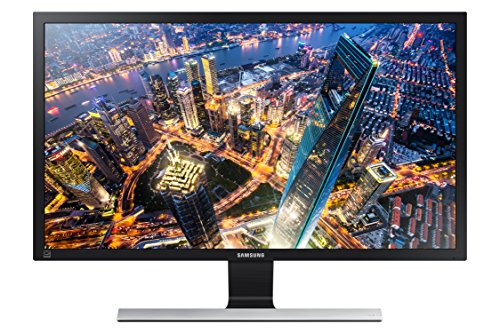
Yup I've got 16gig ddr3 1333mhz ram. and a 256 kingston SSD. not too sure of the quality of either as I didn't source the parts, but I did some trials yesterday and it shredded everything I could throw at it in Lightroom. 100 5dmkiii raw files took about 5 min. to render 1:1 previews. Ground through the pictures in the library/develop module was snappy. Edits in develop module were snappier than I am accustomed to as well even on a 4k screen. (https://www.amazon.com/Samsung-U28E590D-28-Inch-LED-Lit-Monitor/dp/B00YD3DBOC) (granted the performance might be due to a clean reboot.) HDR merge didn't seem any faster than before.
I use a small flash drive constantly in my computer to store my photos on. I'm looking into upgrading my SSD over the holidays so I don't have to do this other than for backups, but it's worked fine for about a year.
I just use the cheap thing. It's ugly as hell, but it is comfortable and the being able to adjust the sensitivity on the fly is nice.
I use an X-Rite i1 Display LT, which has been discontinued. The Display Pro is around $250. But they have two current models under $200 with the ColorMunki Smile being about $90. You can use that link to see the other models. The other main company in the game is Datacolor, whose cheapest current model is the Spyder5EXPRESS at about $130. I remember that the older models only allowed for one monitor per user license, but apparently this has changed for the current lineup.
Which model is best depends on your circumstances, but if you just want a calibrated display, I'm sure any of the above will get the job done.
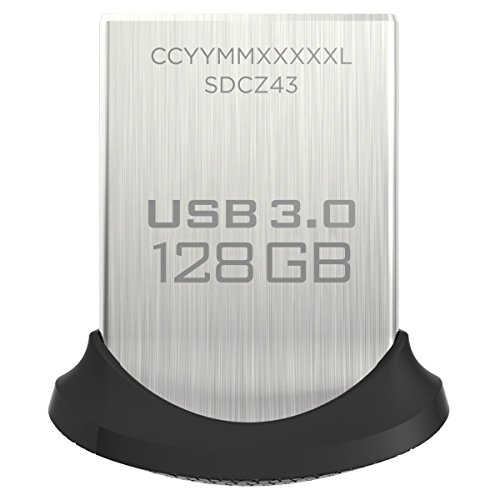
I use a 128GB TOSHIBA USB3.0 to store my photos before I backup all of them to my Google drive.
From my experience, I had never notice any difference of speed and performance from editing photos in my flash drive and internal SSD.
Still, I think 128GB is overkill, 64GB should do just fine.
I use a mid 2013 i5 macbook pro, btw.
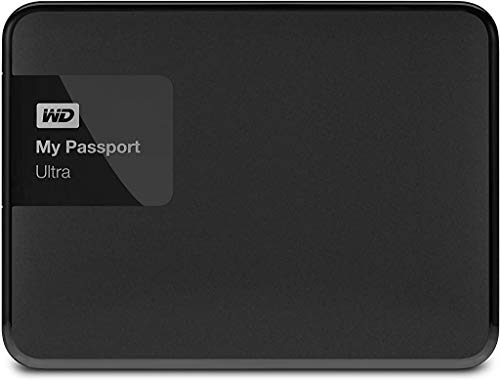
ok one more thing :P Do you think I could use this WD My Passport Ultra external drive for 2 purpose.
1 - I'd use it as a normal backup drive, with the bundled software to backup specific folders on my computer (not necessarily related to lightroom / photo files)
2 - I'd have another folder that i'd use with FreeFileSync specifically for keeping lightroom catalogs and my photos in sync between my desktop and laptop.
I've been looking at getting this thing, the reviews suggest it would work with Premiere and stuff, so it might also work with Lightroom.
But, it might not really be what you're looking for.
Hard drives are a strange thing and probably one of the main techs that people buy the brand they trust. Over the years I've had plenty of portable external drives that have failed on me due to constant abuse (thrown into bags, travelled the world etc) but the Samsung M3 I'm using is still going strong after 2 years so I most defiantly will buy a Samsung again.
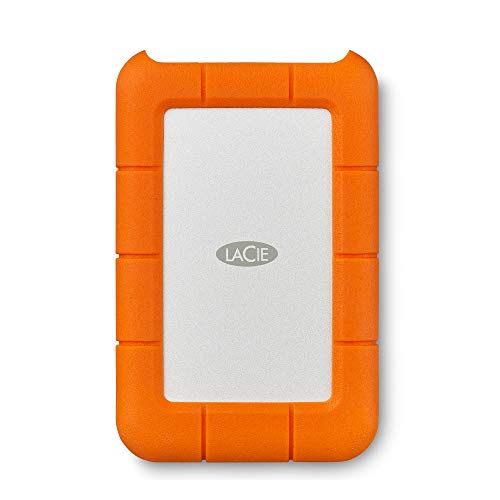
As for the Orange LaCie drives do you mean their rugged model? http://www.amazon.co.uk/LaCie-Rugged-Mini-Hard-Drive/dp/B0058VIWTM/ref=sr_1_2?ie=UTF8&qid=1439380338&sr=8-2&keywords=rugged+HDD
If so I guess a lot of people get them due to the fact they might take that much more abuse :)
edit: If money isn't an issue you could always go for a 1tb external SSD, they are TINY, silly fast and due to no mechanical parts are less likely to die from being thrown around. I'll bite when the USB-C ones come out and they drop in price a bit.
In my experience, this is the best book to get you started.
As for video training, go to Youtube and look for phlearn (though he does more Photoshop than LR tuts).
There might be, I have Android devices and there are various apps that collect the gps info from photos in your phone and pins them into Google maps.
This is the one I sometimes use when walking around doing some scouting for places to shoot. It's for Android, but maybe there is a iOS version? https://play.google.com/store/apps/details?id=de.twofingersapps.photomapper